
Documentación Completa del Módulo
This module enhances Odoo by enabling direct printing to any printer through the jIotBox. It provides a seamless integration for businesses that aim to streamline their printing processes with minimal latency and improved reliability.
Compatible with Ticket printers and standard printers, including locally connected and network printers.
- Direct Server-to-jIotBox Communication: Reduces latency by optimizing the printing process.
- Immediate Printing: Sends print jobs directly to the printer without unnecessary delays.
- Optimized Performance: Improved database queries and network requests for faster response times.
Printer Setup Guide
Navigate to Settings -> Printers to access the printer configuration page.

Click on "Create" to add a new printer to your system.
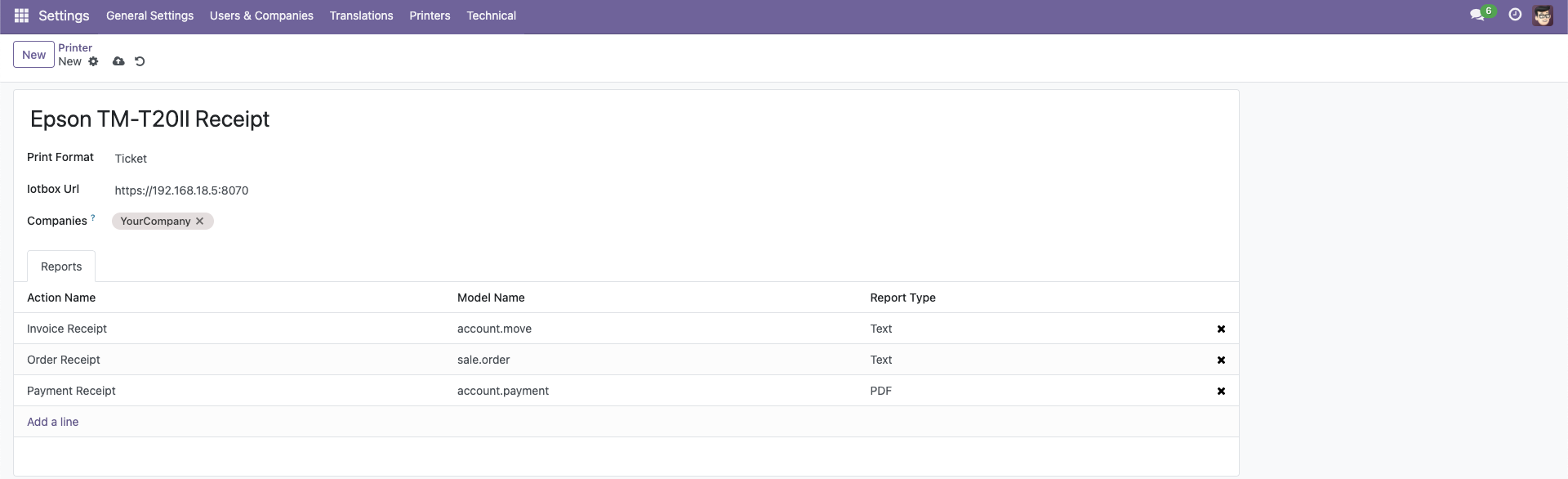
Fill in the printer details:
- Name: A descriptive name for your printer (e.g., "Receipt Printer" or "Office A4 Printer")
- Print Format: Select the appropriate format (Ticket for receipt printers, or A4 for standard printers)
- jIotBox URL: Enter the URL of your jIotBox (e.g., https://192.168.18.5:8070)
- Company: Select the companies that should have access to this printer
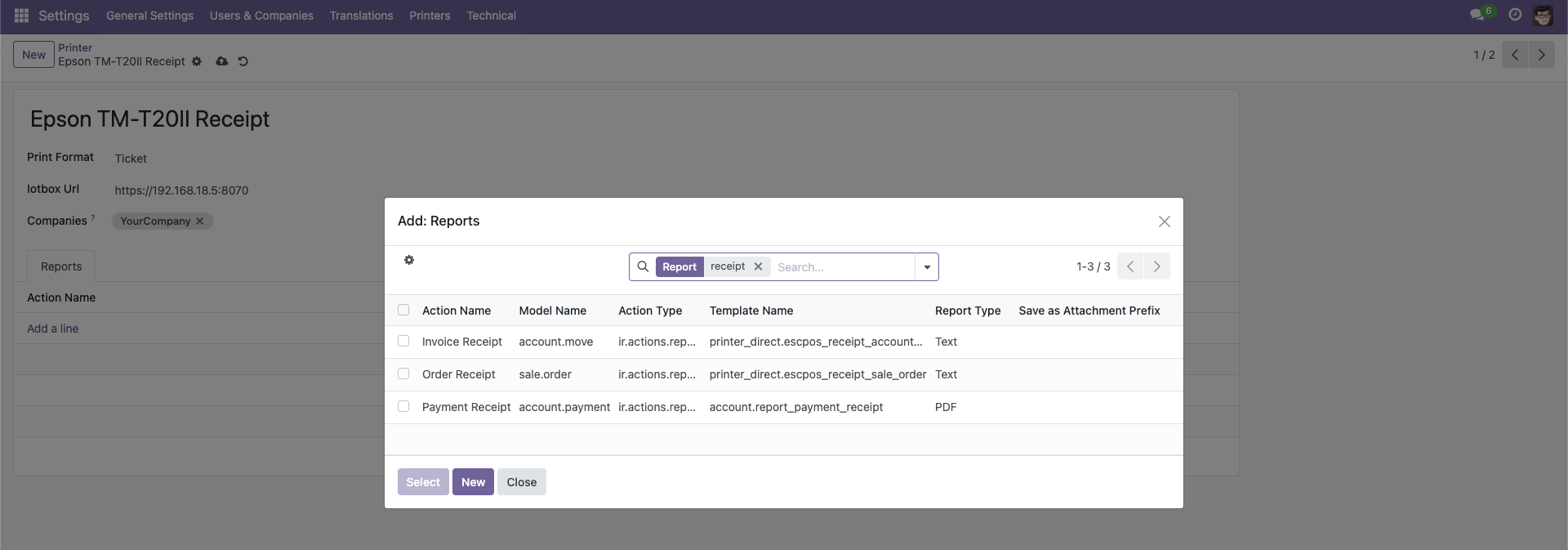
In the "Reports" tab, you can view and manage which standard Odoo reports are assigned to this printer. You can select from any report available in your Odoo system, such as invoices, sales orders, purchase orders, etc.
- Ensure your jIotBox is properly configured and accessible from your client device
- For receipt printers, make sure they support the Ticket format
- Test the connection by printing a test report after configuration
- If you encounter issues, check the browser console for error messages
How Direct Printing Works
The direct printing process follows these steps:
- User Initiates Print: When a user clicks the print button for a report
- Server-Side Processing: The server directly communicates with the jIotBox
- Print Execution: The jIotBox processes the print job and sends it to the appropriate printer
This optimized printing workflow offers several advantages:
- Reduced Latency: Optimized printing process eliminates unnecessary delays
- Improved User Experience: Faster printing without interrupting the user's workflow
- Better Error Handling: Clear notifications and non-blocking error management
- Optimized Resource Usage: Efficient database queries and network requests reduce server load
If you encounter issues with the direct printing functionality, check the following:
- jIotBox Connection: Ensure the jIotBox is online and accessible from your client device
- Printer Status: Verify that the printer is powered on, connected, and has paper
- Network Configuration: Check firewall settings that might block communication between the client and jIotBox
- Browser Console: Look for error messages in the browser console that might indicate specific issues
To use the direct printing functionality, you'll need to install the jIotBox software on your server or local machine. This software acts as a bridge between Odoo and your printers, enabling fast and reliable printing without the need for the standard IoT Box hardware.
Contact us to obtain the jIotBox software and detailed installation instructions for your specific environment.
Help and Support
¿Necesitas conectar hardware en tu Odoo POS?
Desarrollo de módulos a medida, conexión directa de balanzas comerciales, impresoras térmicas (IP/Bluetooth/USB), y flujos de automatización locales.