
pos_printer_all_in_one POS All-in-One Direct Print
Documentation Complète du Module
This module extends the Odoo Point of Sale (POS) application, enabling businesses to print kitchen orders, bills, and receipts directly to thermal printers. It offers a complete printing solution for restaurants, cafes, and retail establishments looking to streamline their printing operations.
Compatible with ESCPOS and non-ESCPOS printers, including locally connected printers (USB, serial, etc.), not limited to network printers.
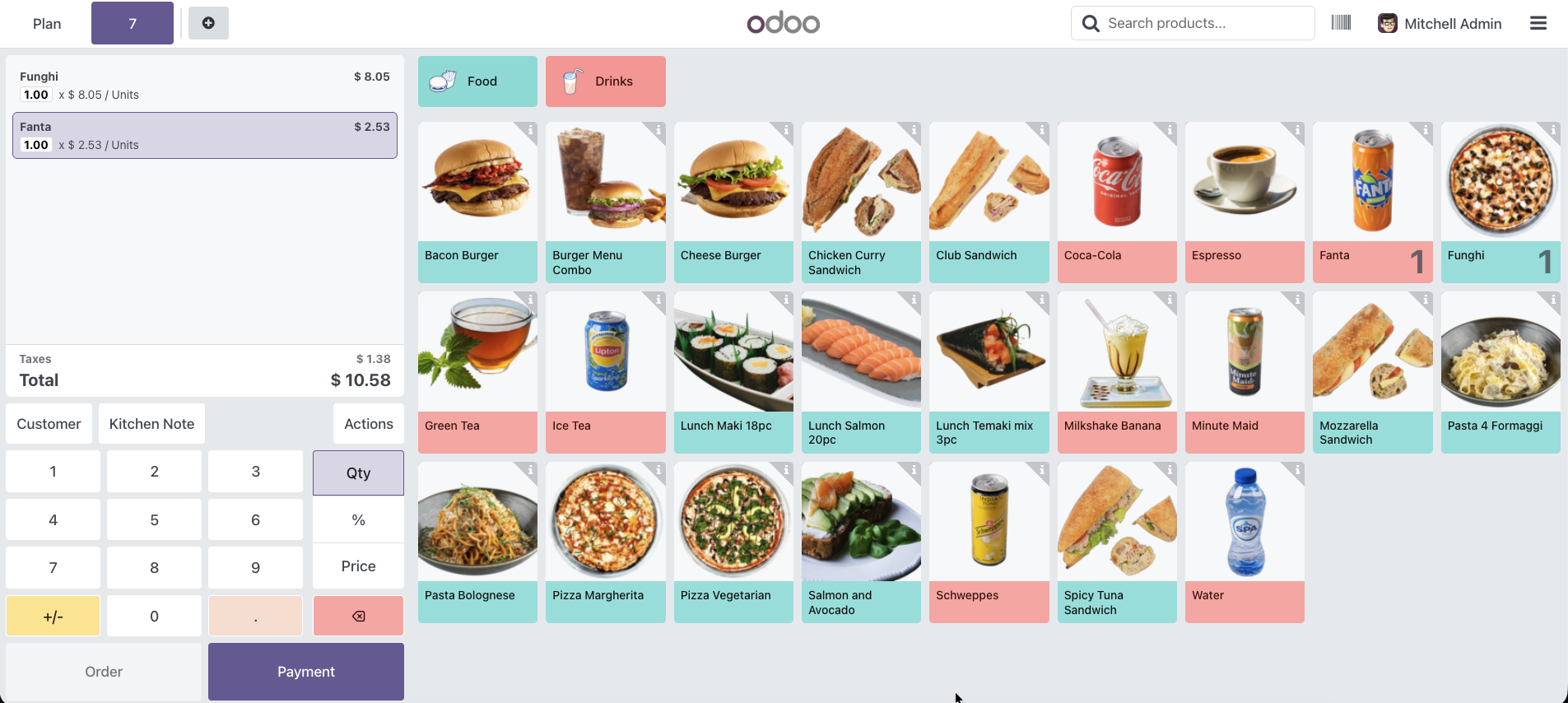
- Kitchen Order Printing: Print preparation orders directly to kitchen printers with custom XML designs for optimal kitchen workflow.
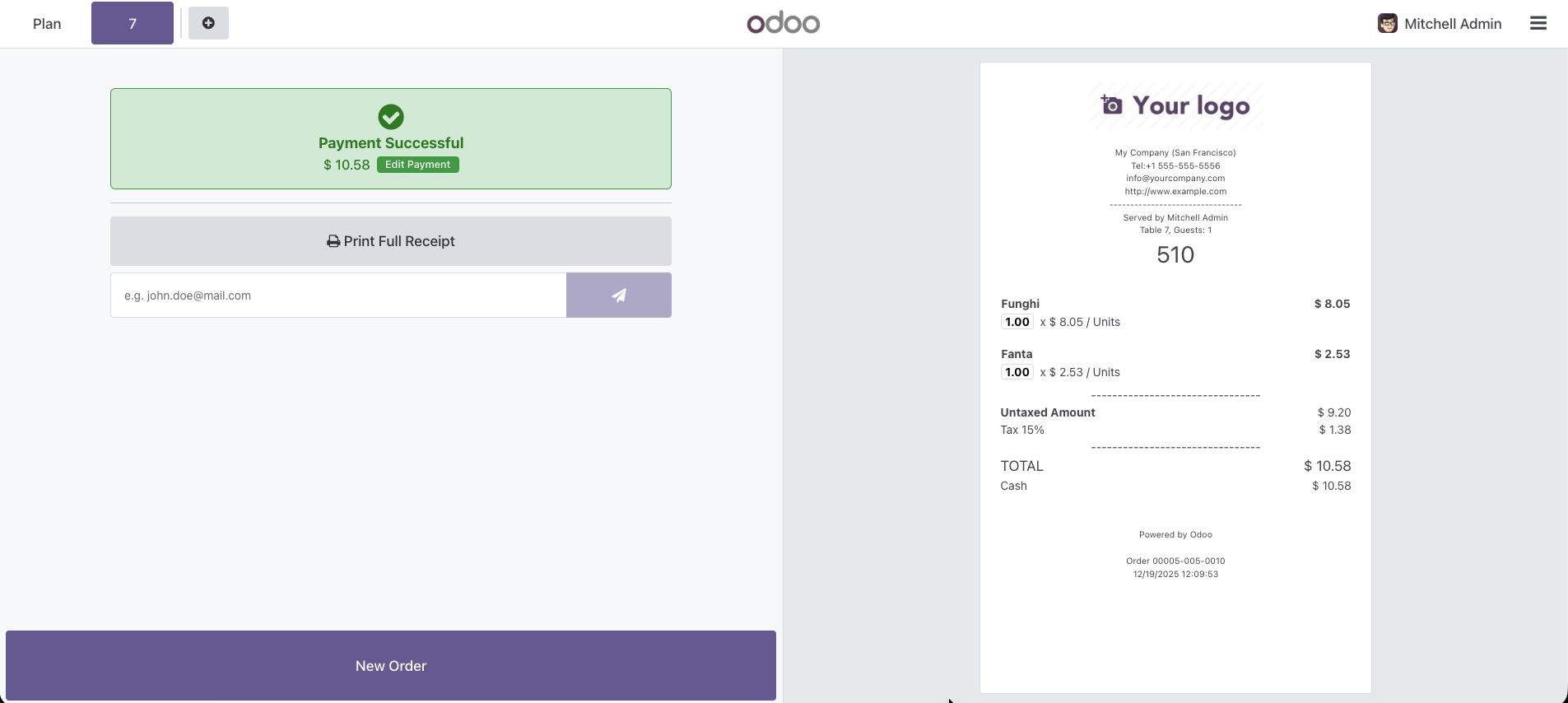
- Bill & Receipt Printing: Print customer bills, invoices, and receipts with customizable templates and layouts.
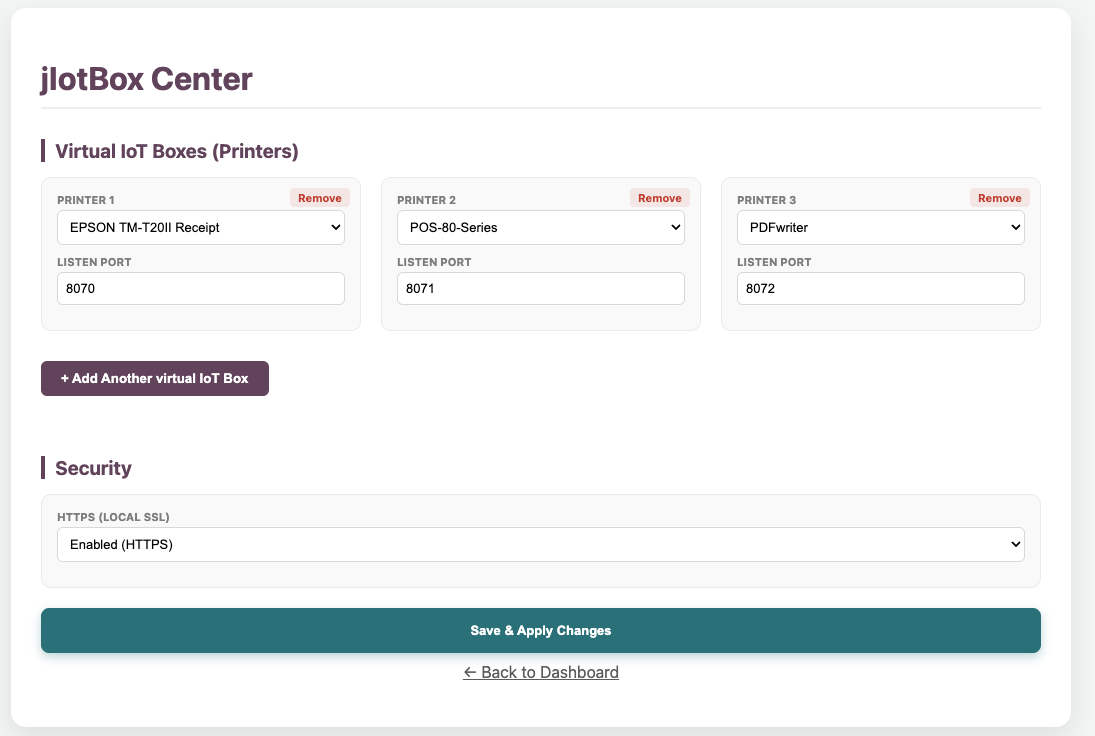
- Direct Printing with jIotBox: Integrates with jIotBox or custom proxy solutions, bypassing the need for IoT Box and enabling direct printing from Odoo POS to your thermal printers. This ensures faster, more reliable printing and supports a wide range of printer models.
- Multi-Platform Support: Works seamlessly on desktop, mobile devices, tablets, Android, and iOS.
- Enhanced Workflow: Improve order accuracy, speed up service times, and enhance overall operational efficiency with customizable receipt layouts.
Installation Guide
Step 1: Install Java
Step 2: Install jIoTBox Server
Windows
- Locate the jIotBox folder.
- Right-click
install_windows.bat. - Select Run as Administrator.
macOS
- Open Terminal in folder.
chmod +x setup_service_mac.sh./setup_service_mac.sh
./restart_mac.sh
Linux
- Open Terminal in folder.
chmod +x setup_service_linux.sh./setup_service_linux.sh
Step 3: Connect Odoo POS
POS Configuration
Connect any device (iPad, Android, PC) on the same network using your Server IP.
Simple Mode (Recommended)
No certificates needed. Works instantly.
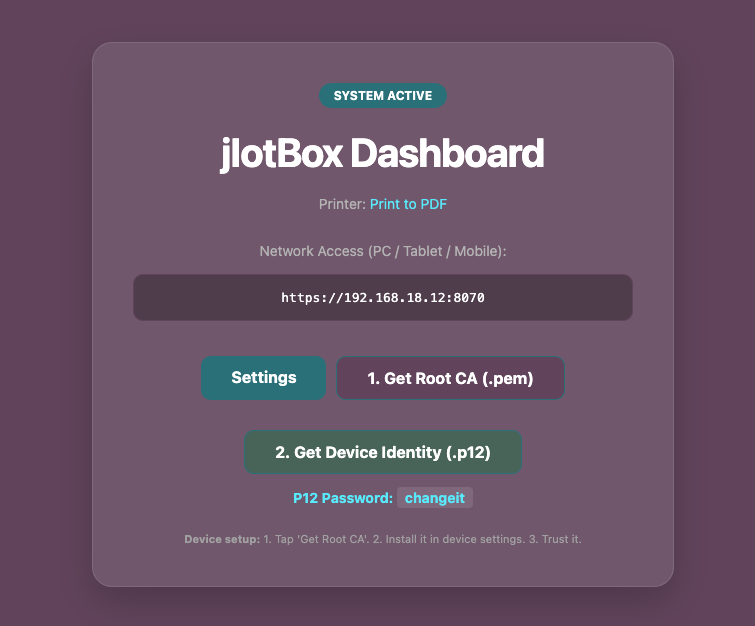
http://YOUR_SERVER_IP:8071
Secure Mode (Advanced)
Requires installing Root CA certificate.
https://YOUR_SERVER_IP:8070
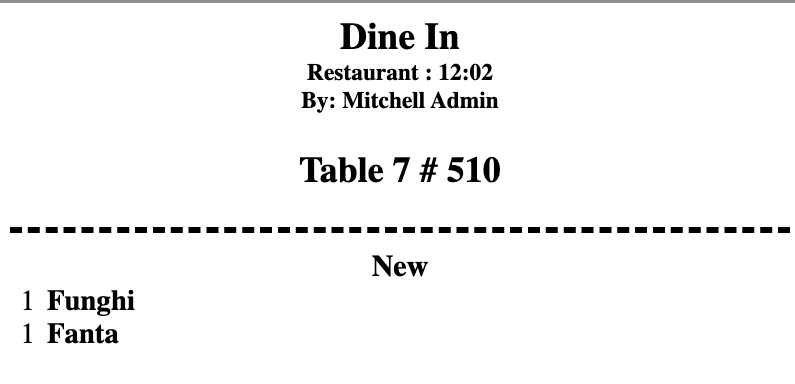
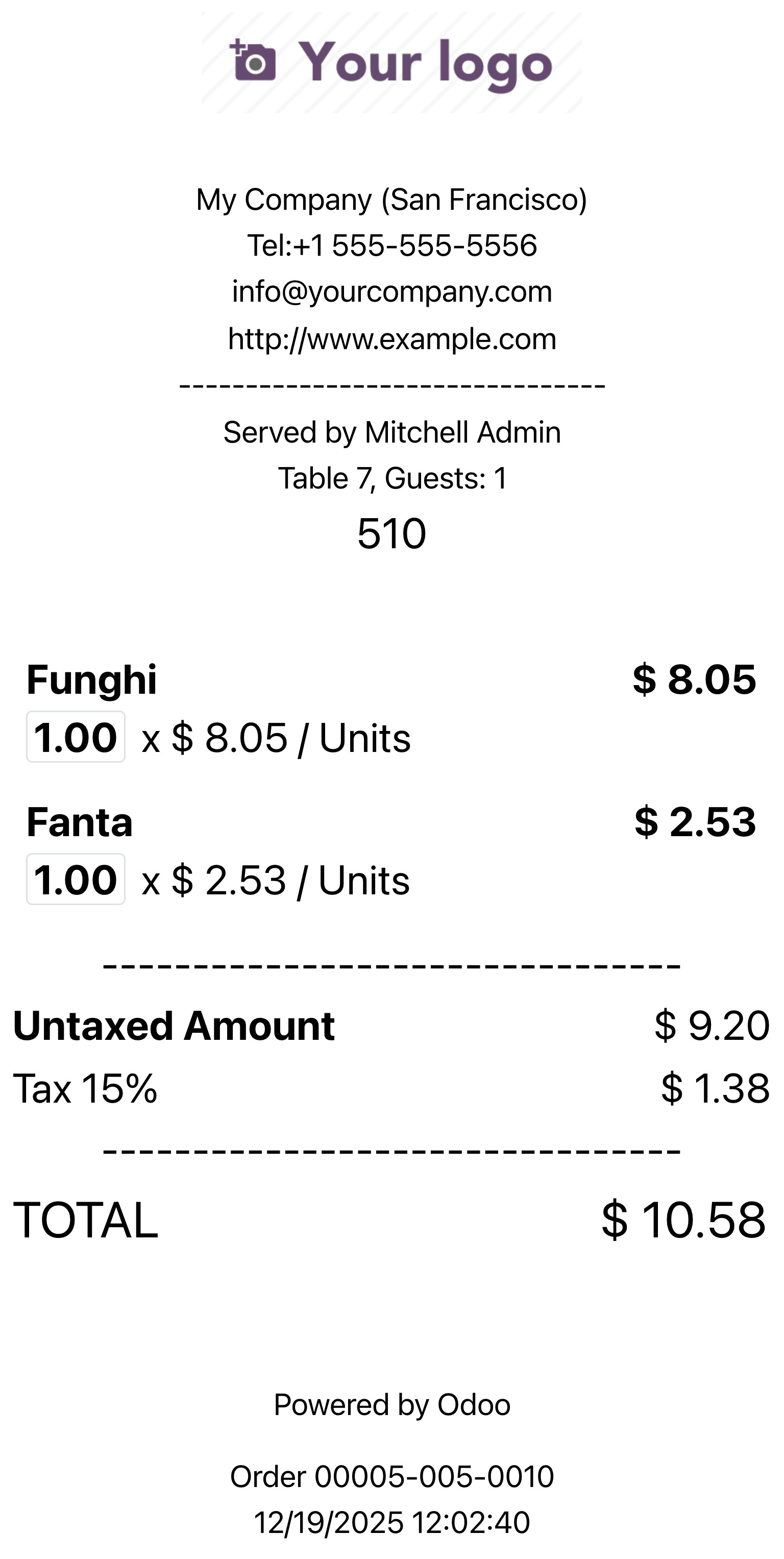
It's crucial to ensure that the required drivers are correctly installed for optimal performance. Without the proper drivers, your printers may not function as expected, leading to errors and disruptions in your printing processes.
Before using this module, double-check that all printer drivers are installed and up to date. Proper driver installation helps prevent compatibility issues and ensures seamless printing of kitchen orders, bills, and receipts from Odoo POS to your thermal printers.
Help and Support
Besoin d’intégrer du matériel à Odoo POS ?
Développement de modules sur mesure, connexion directe de balances commerciales, imprimantes thermiques (IP/Bluetooth/USB) et flux d’automatisation.