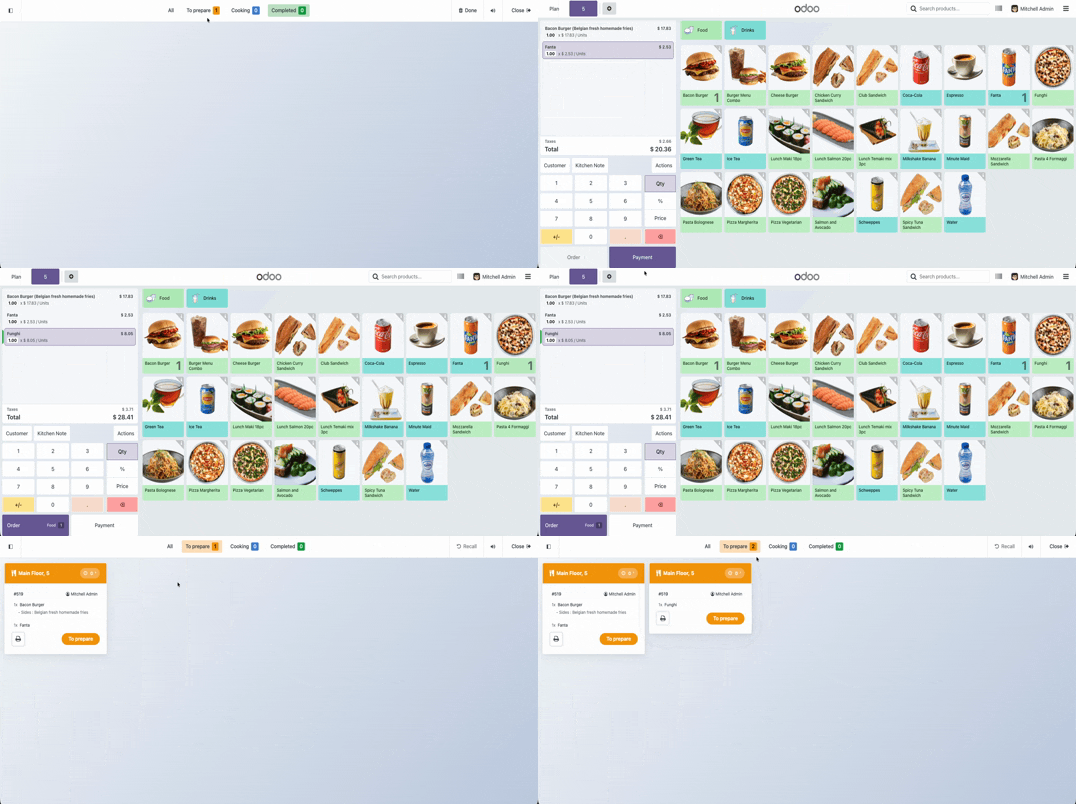
pos_kitchen_displays POS Kitchen Display System
Complete Module Documentation
Transform your restaurant operations with a professional Kitchen Display System (KDS) that streamlines order management, improves kitchen efficiency, and reduces errors. Perfect for restaurants, cafes, food trucks, and any food service business looking to modernize their kitchen workflow.
Real-time order updates across all kitchen displays
Category-based printer routing for optimal kitchen organization
- Real-Time Order Display: Orders appear instantly on kitchen screens as soon as they're placed at the POS.
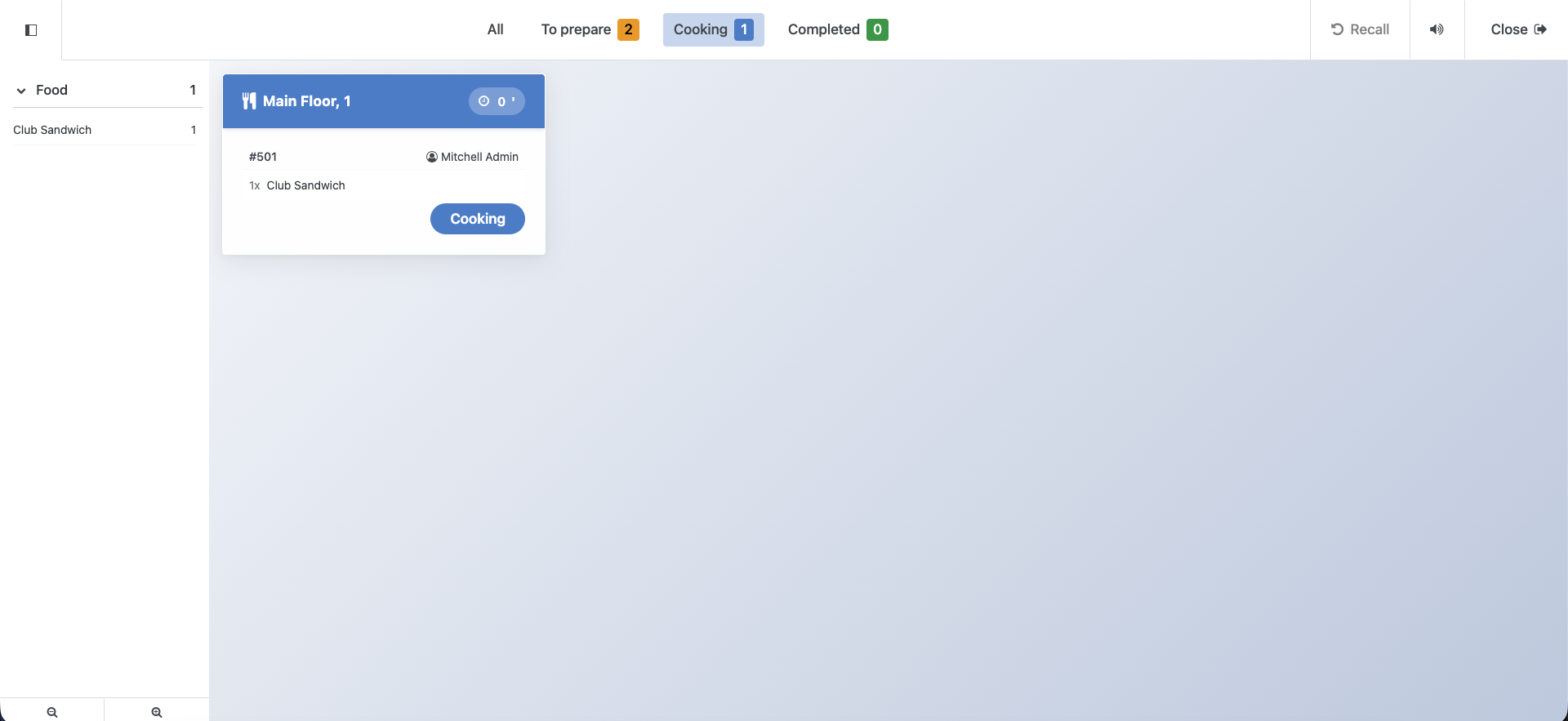
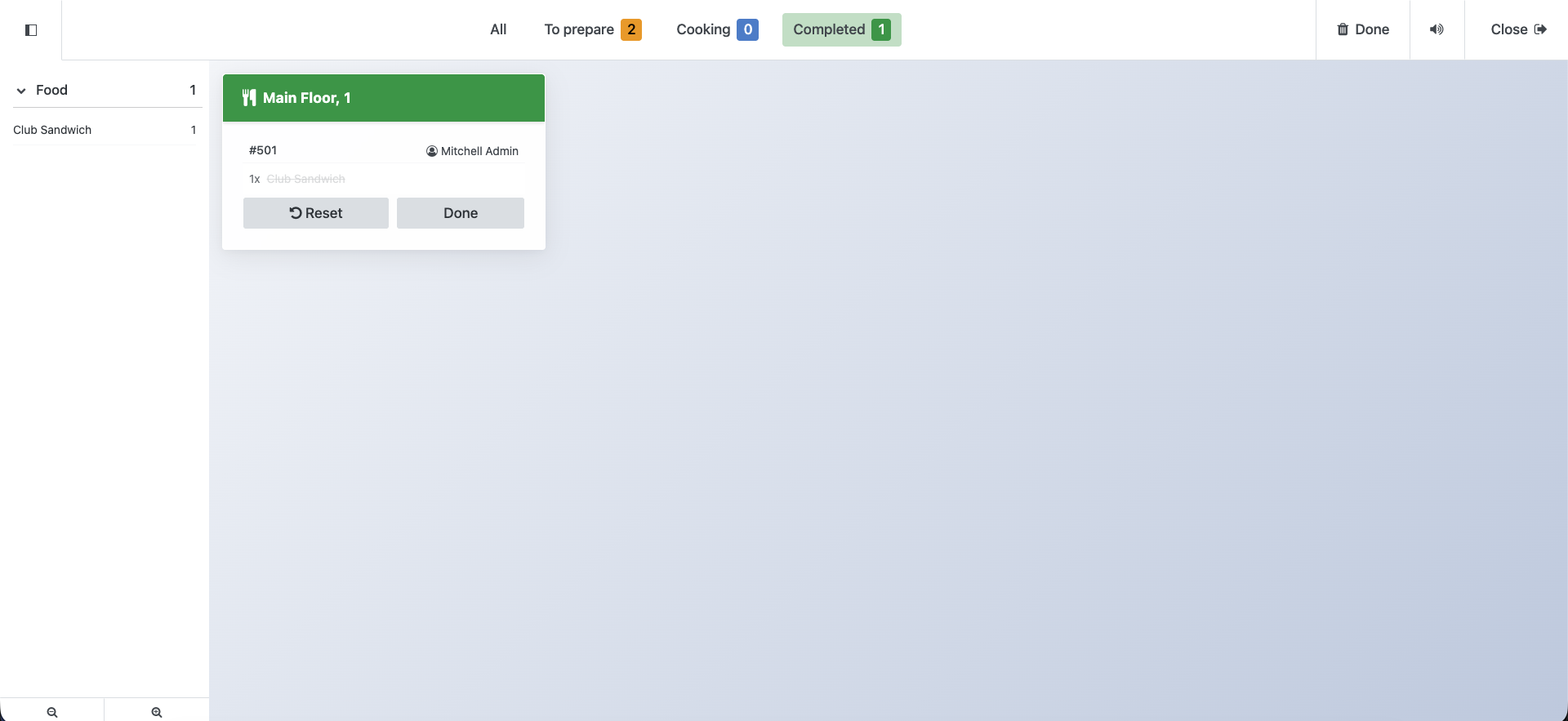
- Stage-Based Workflow: Track orders through customizable stages (To Prepare, Cooking, Completed) with visual color coding.
- Smart Printing: Automatically route orders to the correct kitchen printer based on product categories (Grill, Fryer, Salads, etc.).
- Category & Product Filters: Filter orders by category or product to focus on specific preparation areas.
- Time Tracking: Visual alerts when orders exceed preparation time thresholds.
- Zoom Controls: Adjust display size from 50% to 200% for optimal viewing distance.
- Sound Notifications: Optional audio alerts for new orders with easy on/off toggle.
- Order Details: Display table numbers, customer names, order notes, and product attributes.
- Multi-Display Support: Run multiple kitchen displays simultaneously for different stations.
How It Works
1. Order Placed
Server takes order at POS terminal and confirms it.
2. Kitchen Display
Order appears instantly on kitchen display screens with all details.
3. Auto Print
Kitchen tickets print automatically to the correct station printers.
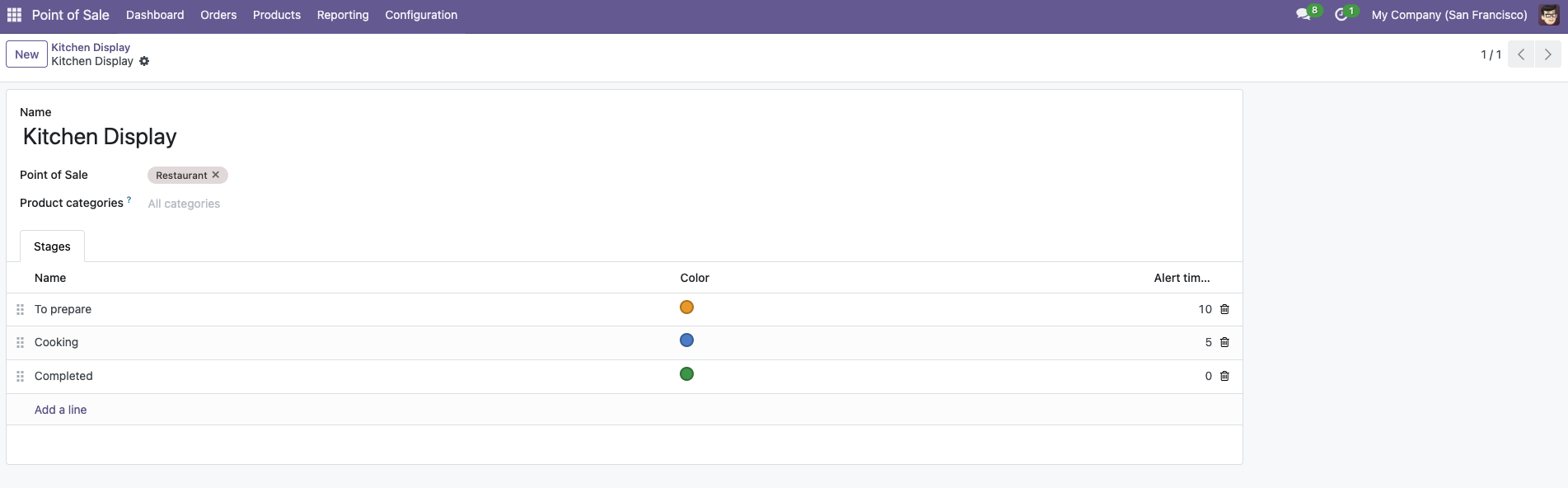
Step 1: Create Kitchen Display
Navigate to Point of Sale -> Configuration -> Kitchen Display and create a new display:
- Name: Give your display a descriptive name (e.g., "Main Kitchen", "Grill Station")
- Point of Sale: Select which POS terminals will send orders to this display
- Product Categories: Choose which product categories this display should show (leave empty for all)
- Stages: Customize workflow stages with names, colors, and alert timers:
- To prepare - Orange (#F59E0B) - Alert after 10 minutes
- Cooking - Blue (#4D89D1) - Alert after 5 minutes
- Completed - Green (#16A34A) - No alert
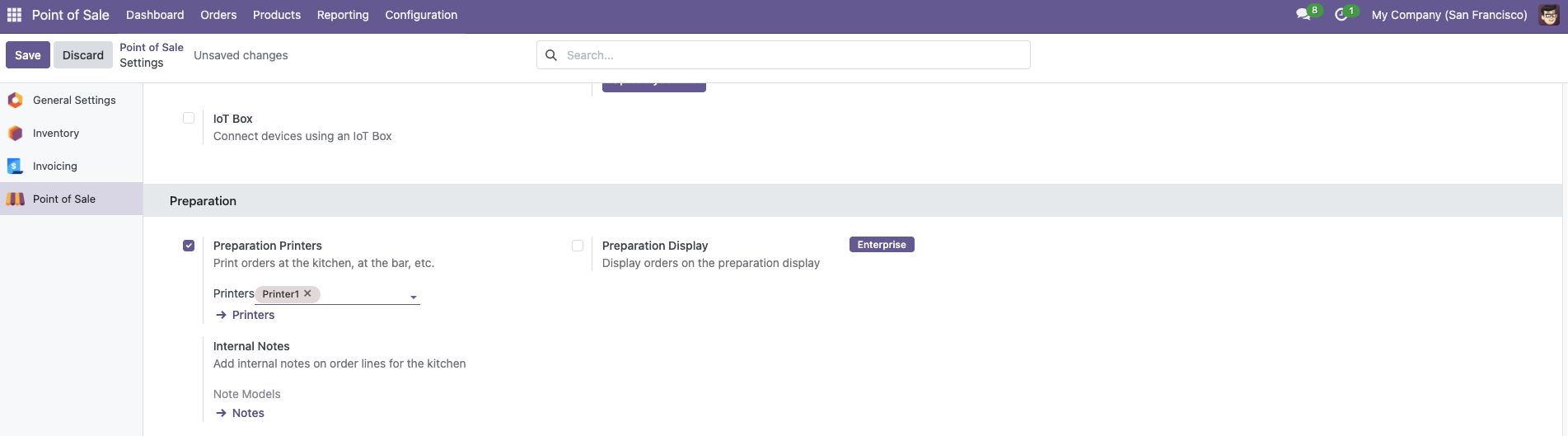
Step 2: Configure Kitchen Printers (Optional)
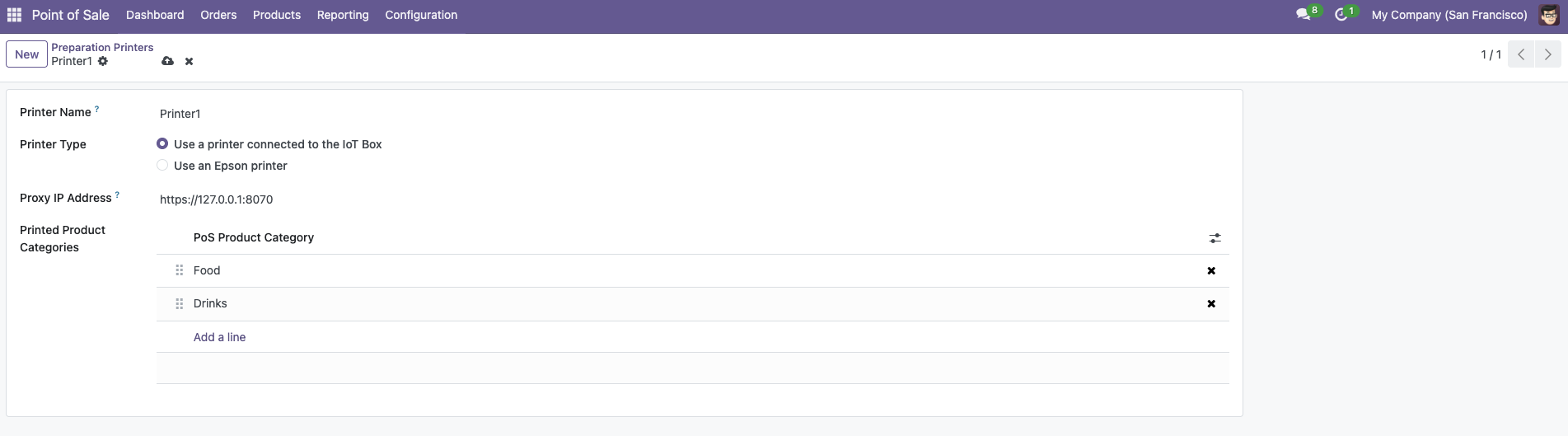
To enable manual kitchen receipt printing, configure IoT printers in Point of Sale -> Configuration -> Preparations Printers:
- Printer Type: Select "IoT" printer type
- Proxy IP: Enter your IoT Box URL (e.g., https://127.0.0.1:8070)
- Product Categories: Assign categories to route orders to specific printers:
- Grill Printer -> Burgers, Steaks
- Fryer Printer -> Fries, Chicken Wings
- Salad Station -> Salads, Cold Appetizers
- Leave empty to print all orders
Step 3: Access Kitchen Display
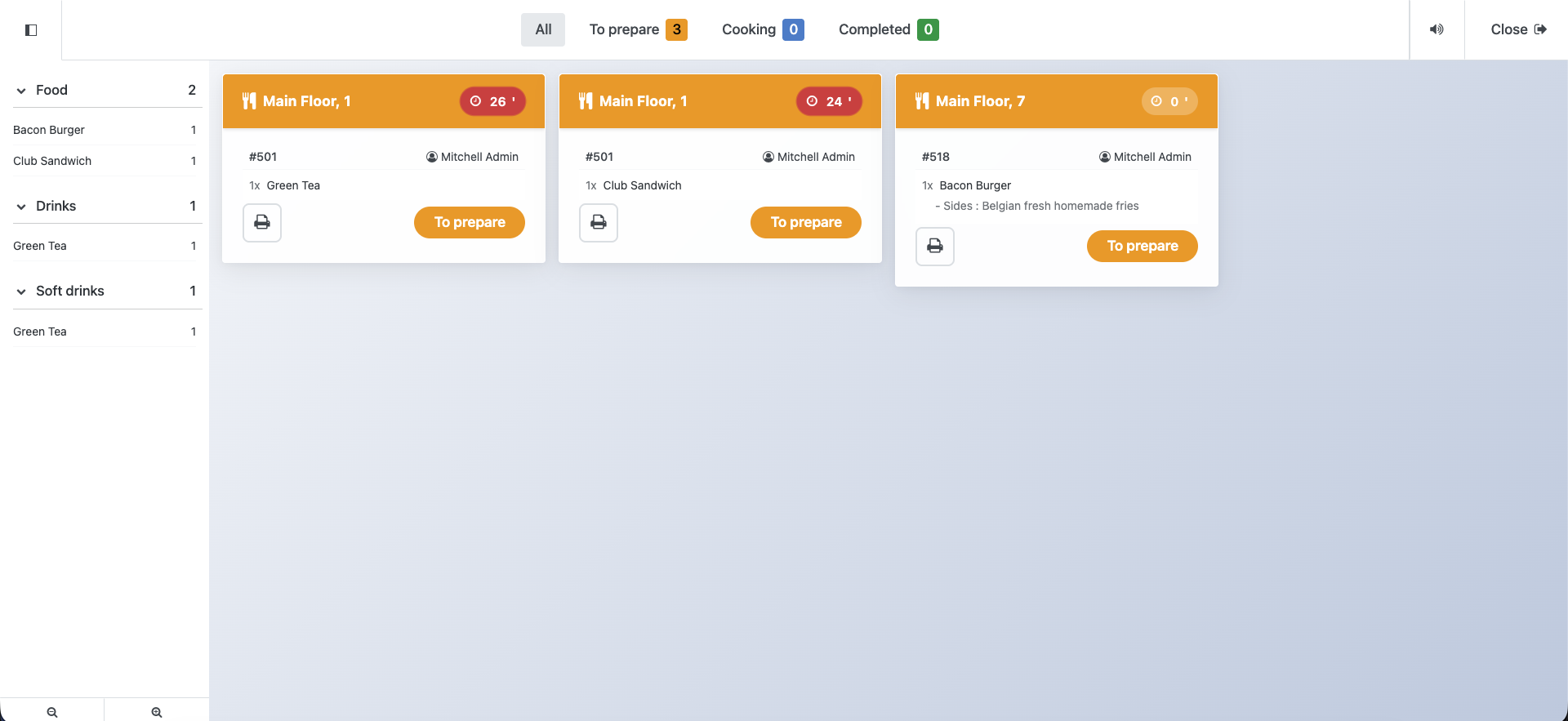
Open the Kitchen Display from the menu or click the "Open UI" button on the display record. The display will show:
- Order Cards: Each order with table number, tracking number, and timer
- Stage Tabs: Filter orders by preparation stage
- Category Filters: Focus on specific product categories
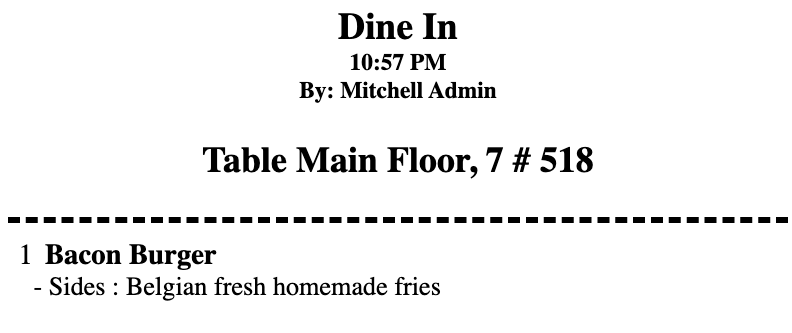
- Print Button: Manually print kitchen tickets (if printers configured)
- Zoom Controls: Adjust display size (50% - 200%)
- Sound Toggle: Enable/disable audio notifications
- Faster Service: Reduce order preparation time with clear, organized displays.
- Fewer Errors: Eliminate handwritten tickets and miscommunication.
- Better Organization: Route orders to the right kitchen station automatically.
- Improved Tracking: Monitor order status and preparation times in real-time.
- Paperless Option: Reduce paper waste with digital displays (printing optional).
- Scalable: Add multiple displays as your business grows.
1. Create Display: Set up one or more kitchen displays with custom names and stages.
2. Assign Categories: Link product categories to specific kitchen printers (optional).
3. Start Using: Orders automatically appear on displays when confirmed at POS.
Need to integrate hardware with Odoo POS?
Custom module development, direct connection for commercial scales, thermal printers (IP/Bluetooth/USB), and local automation workflows.