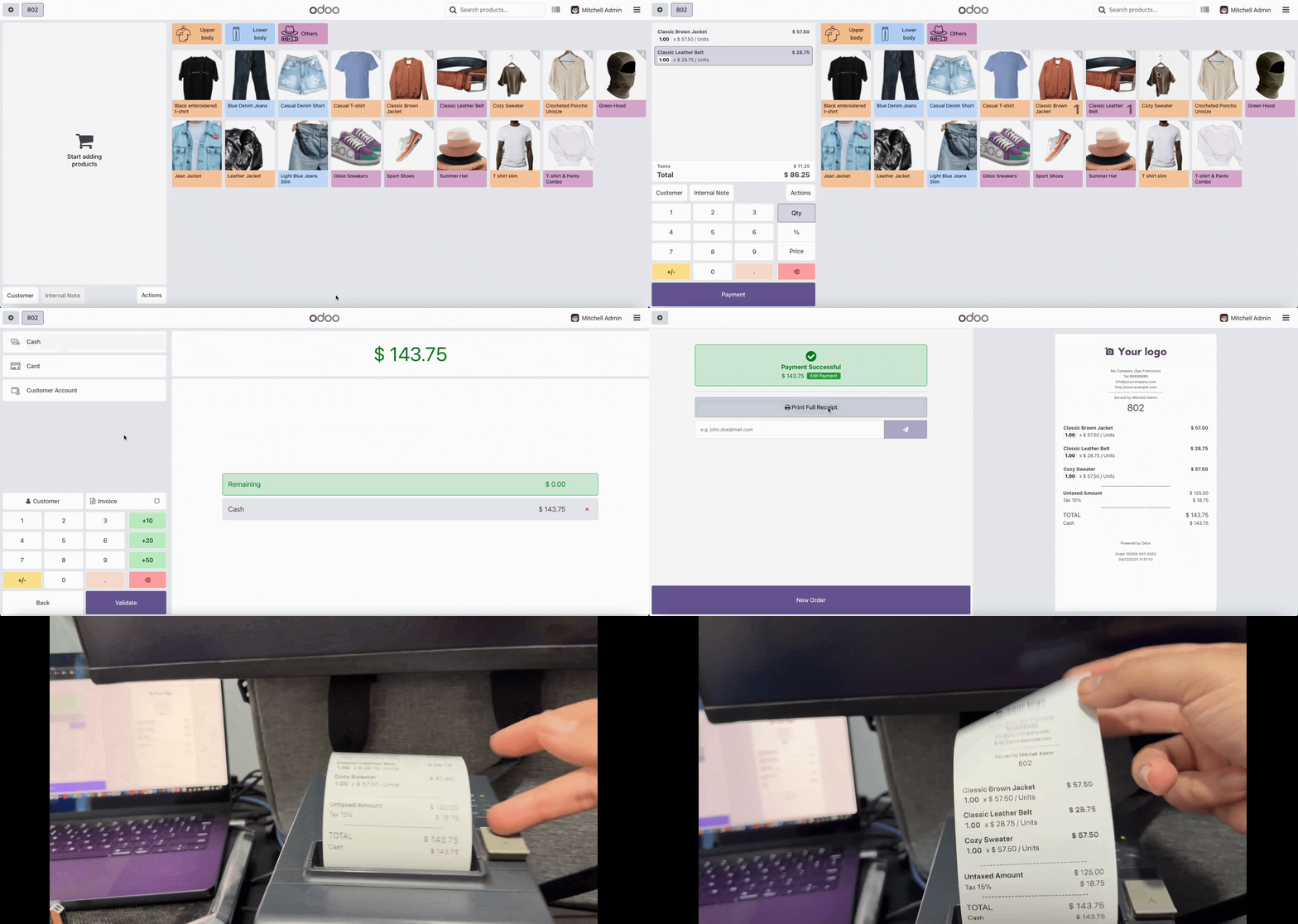
pos_bill_print POS Bill Direct Print + Cash Drawer
Documentation Complète du Module
Click on the Live Preview button in the Odoo App Store to test the module directly on our demo server:
Username: demo
Password: demo
https://github.com/Mimbex/jIotBox Demo Repository - Follow the steps in the repository.
This module enhances the Odoo Point of Sale (POS) application by enabling direct printing to any modern ticket printer. It provides a seamless integration for businesses that aim to streamline their POS printing processes without the need for additional IoT hardware.
Compatible with non ESCPOS printers, including locally connected printers (USB, serial, etc.), not limited to network printers.
- Direct Printing with jIotBox: Integrates with jIotBox, bypassing the need for the IoT Box and enabling direct printing from Odoo POS to your bill printers. This ensures faster, more reliable receipt printing and supports a wide range of printer models.
- Opening Cash Drawer: The cash drawer will open both when the "Open Cashbox" button is pressed in the POS interface and automatically when an order is validated.
POS Session View And Configuration
Go to Point of Sale → Configuration → Point of Sale to access the configuration settings for your POS terminal. In the 'Connected Devices' section, check the 'IoT Box' option, then select 'Receipt Printer' and enter the direct IP address and port number of your printer:
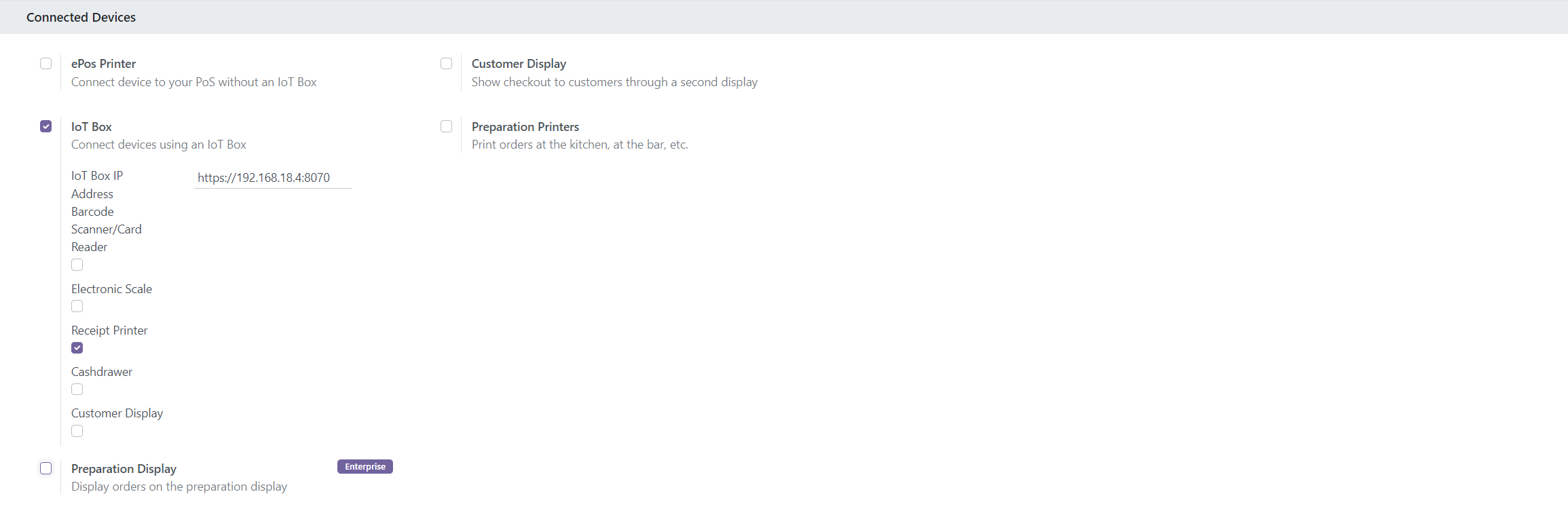
Proxy IP Address: https://ip:port
Point Of Sale
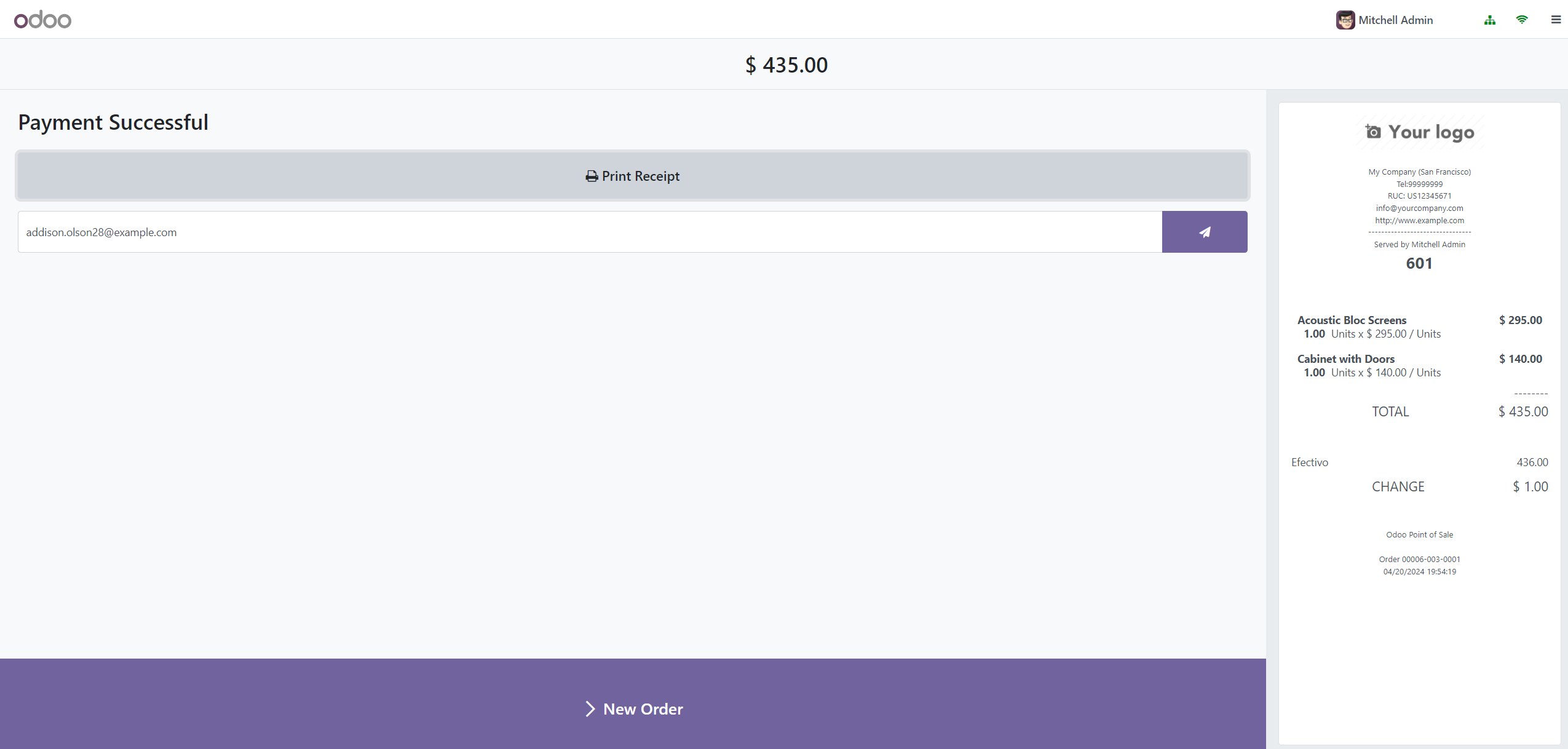
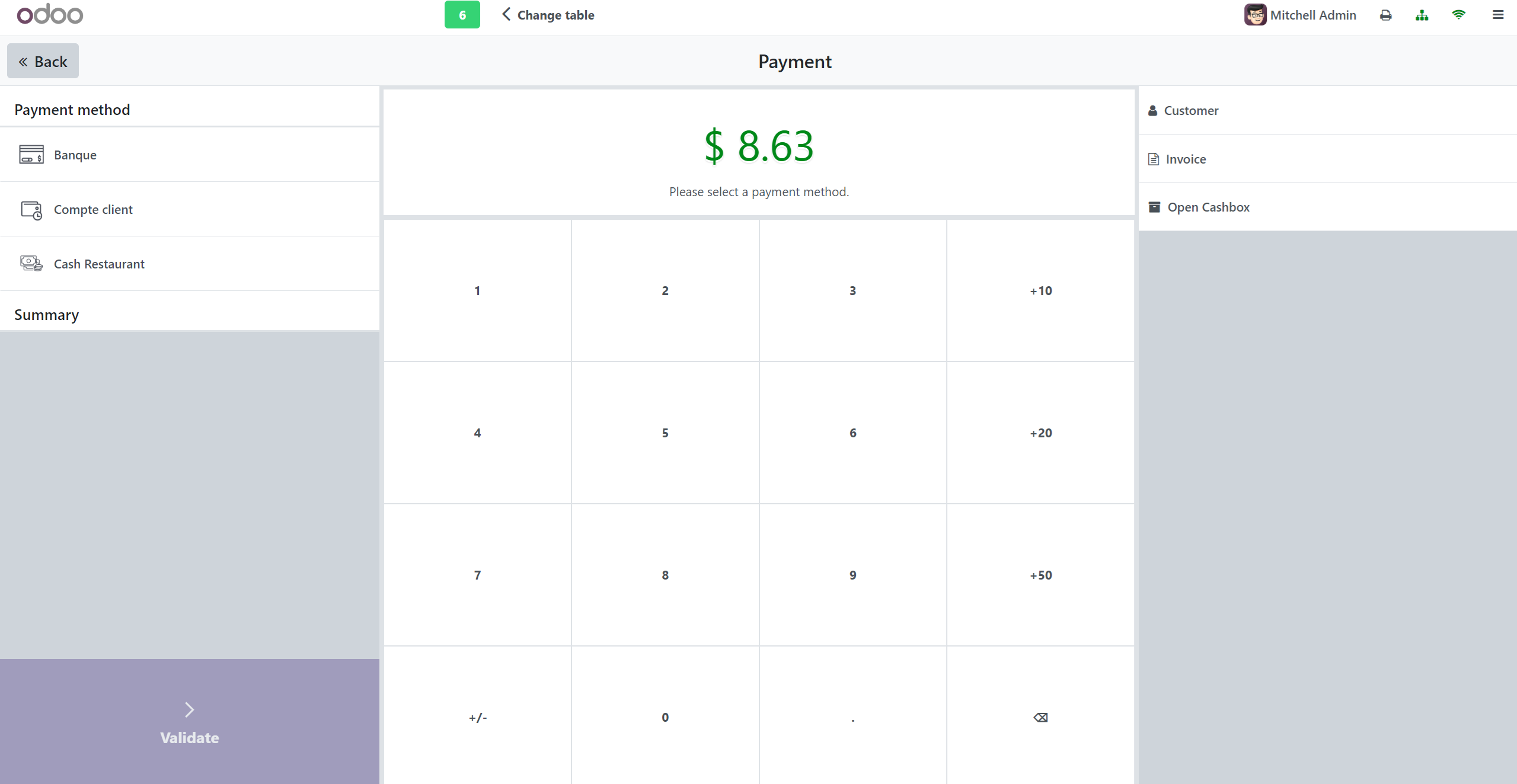
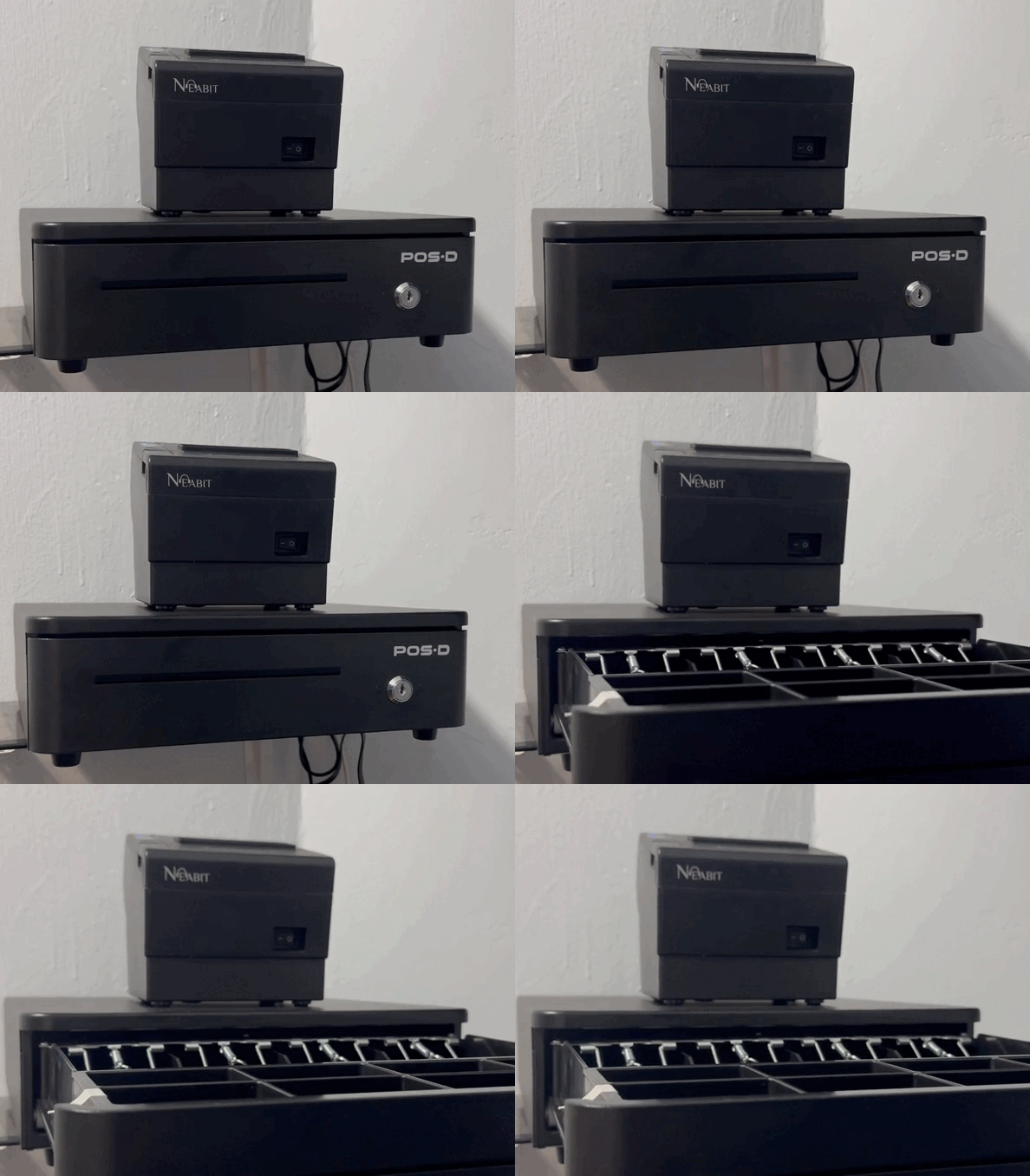
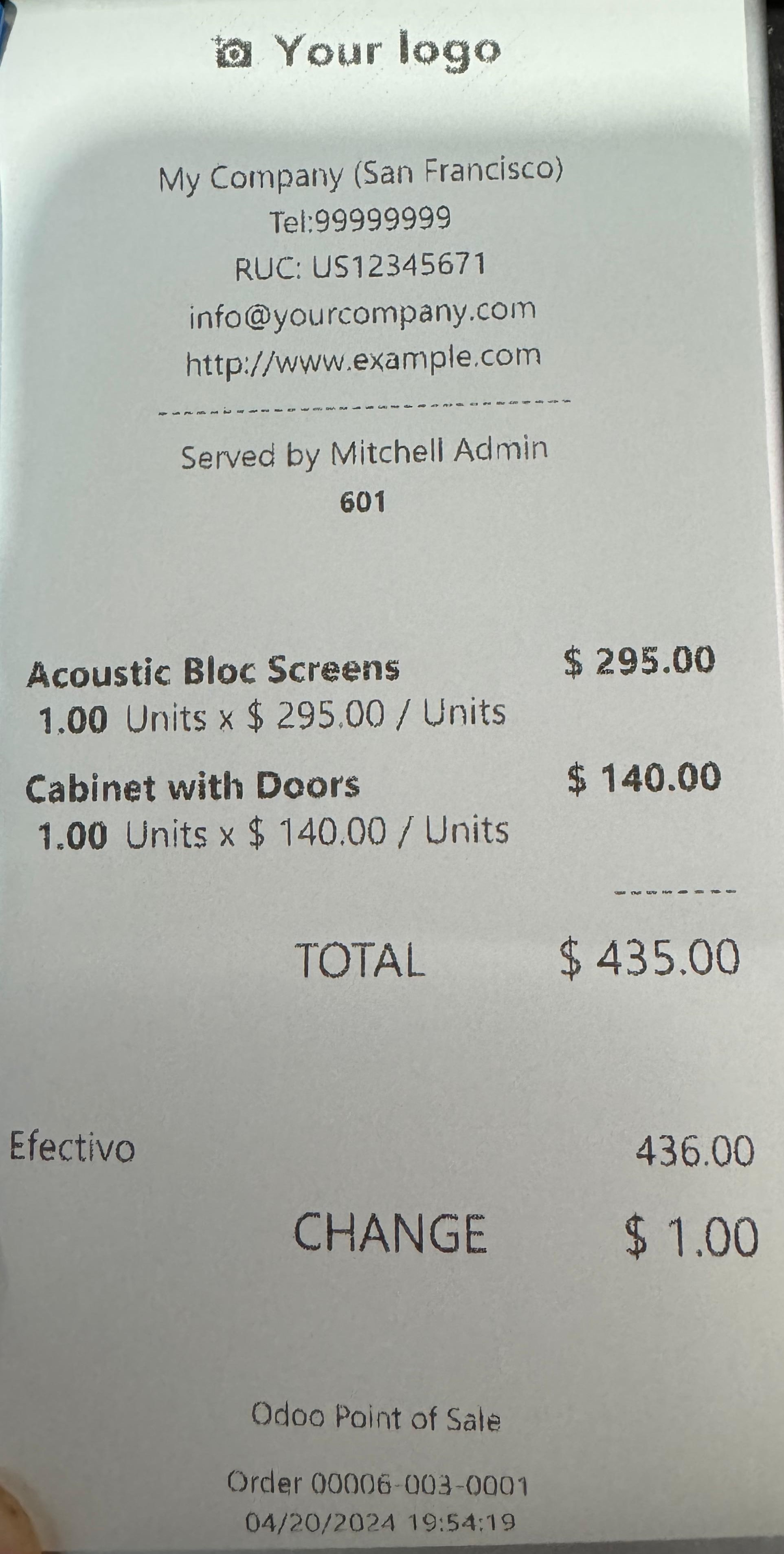
It's crucial to ensure that the required drivers are correctly installed for optimal performance. Without the proper drivers, your printers may not function as expected, leading to errors and disruptions in your order management process.
Before using this module, double-check that all printer drivers are installed and up to date. Proper driver installation helps prevent compatibility issues and ensures seamless printing from Odoo POS to your bill printers.
Ensuring secure communication for jIotBox on Windows involves several critical steps, from installing package managers to setting up SSL certificates. Here's a detailed walkthrough:
- Go to the jIotBox settings.
- Look for the "Enable SSL" option within the settings.
- Check the box to activate SSL.
- Find the section to configure the IP address ("Local Ip").
- Enter the local server IP address.
- Save the changes.
If you encounter any CORS errors, we recommend using Mozilla Firefox and disabling CORS. CORS errors might occur when accessing certain resources due to security restrictions enforced by the browser.
To disable strict origin policy
in Firefox, type
about:config in the
address bar. Search for
security.fileuri.strict_origin_policy
and set it to
false. This
adjustment can help when working
with local files and testing
across different origins.
To disable mixed content
warnings in Firefox, enter
about:config into
the address bar and search for
security.mixed_content.block_active_content.
Set it to false.
This change allows loading of
mixed active content, which can
help during development and
testing.
Unfortunately, we can't disable these security features in Chrome or Safari using similar methods. In these cases, it's necessary to use other approaches to resolve the issue, such as ensuring all resources are served over HTTPS or using a development proxy that handles HTTPS.
Help and Support
Besoin d’intégrer du matériel à Odoo POS ?
Développement de modules sur mesure, connexion directe de balances commerciales, imprimantes thermiques (IP/Bluetooth/USB) et flux d’automatisation.